Installed app: ChatGPT Accessibility
Default install reopens ChatGPT to check its Accessibility permission. If access is already valid, no authorization card is needed. If missing, the native guide opens automatically. Default uninstall checks the restored official app through the same guide.
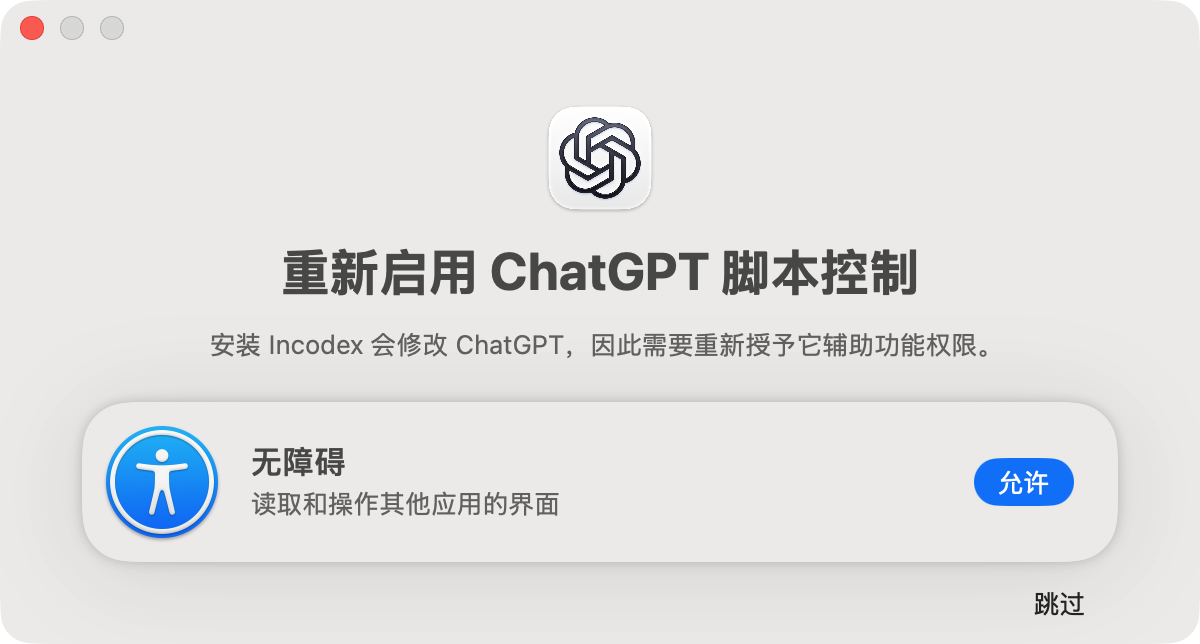
This real-window image shows the Chinese card; its language follows the local Codex setting. Choose Allow, drag the guide’s ChatGPT app row into System Settings → Privacy & Security → Accessibility, enable it, and complete macOS authentication. The guide checks automatically and closes when access is verified. macOS 12 uses System Preferences → Security & Privacy → Privacy → Accessibility.
Back returns to the initial card. Skip or closing leaves permission setup unfinished without undoing installation. Run incodex accessibility to resume later. Only choosing Allow can reset ChatGPT’s old Accessibility registration; same-bundle-ID copies share that registration. --app / --clone targets do not start this automatic handoff.
Independent open: terminal or launcher
incodex open needs Accessibility for the terminal or launcher that runs it, to distinguish window close from minimize. This is separate from ChatGPT’s permission. Enable the program requested by macOS and retry. The check occurs before session creation. open --dry-run does not request access.
Keychain
After a macOS patch changes signing, a system dialog may ask the app to access Codex Storage Key. Verify the expected app and item before entering your Mac login password, then choose Always Allow if you want to retain access. Allow / Allow Once can prompt again. Deny mismatched requests. Do not enter that password into Incodex or Terminal.
Other permissions and Appshot
Keychain approval and Computer Use access do not prove Accessibility access. Screen & System Audio Recording is a separate macOS permission; changing it does not repair Incodex Accessibility setup.
The modified macOS package cannot preserve a valid OpenAI signature. Official Appshot / smart snapshot photo and screenshot attachments stop working after install; this is not a camera-permission issue. Uninstall restores the official package and Appshot. The no-patch open path does not change the app’s signature.