The installed control
After incodex install, launch the official Codex icon as usual. The hat-glasses control is at the leading edge of Search’s toolbar action group, before the other actions. Its exact spacing follows the official app.
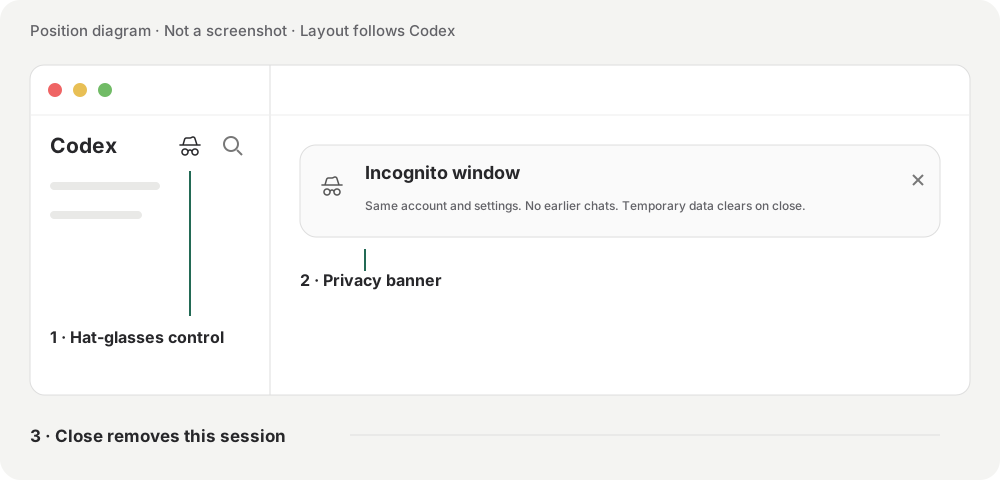
This is a position diagram, not a screenshot. Click the hat-glasses control, or press Shift+Command+N on macOS / Ctrl+Shift+N on Windows. On macOS, the installed integration also exposes the action in the official Dock menu and the existing menu-bar status menu.
Hover over the normal-window control for “Open incognito window”. In an incognito window, hover changes the hat to a circle-x with an exit tooltip. Clicking it closes that private window; it does not start a nested window.
Additional sidebar entry (v1.3.0)
Added in v1.3.0. Incodex adds a second hat-glasses control first in the sidebar’s pinned-plugin area, above the other pinned entries. The Search-toolbar control stays in place. Both controls use the same open/exit action and follow the official app’s styling.
The extra entry appears when Incodex recognizes the sidebar layout; otherwise, use the existing toolbar control. Opening through this entry has been verified on macOS. Windows real-window verification is still pending.
The private window
The separate window uses the same login, language, and base configuration. Earlier chats are absent. It follows the main window’s size and placement. Its home-page notification explains the private session; dismissing this banner only hides the explanation, not the isolation.
incodex open also receives the hat-glasses control and banner, whether the official app has the current installed loader or has never been patched.
Close versus minimize
Normal close removes the isolated home and Chromium profile. Minimize keeps the session alive. On macOS, the red button closes; the yellow button minimizes. On Windows, close the isolated window normally.
An unexpected crash, force quit, or shutdown may leave cleanup work. Use doctor to inspect leftovers; do not delete your official ~/.codex data.
Terminal menu
Run inc in a terminal. Use arrows or j/k, Enter to select, digits to run immediately, V for version, and q to quit. Without a terminal, no arguments prints help. inc and incodex are the same program. --help and --version also accept -h and -V.